
7 Must-Have Apps for Managing Your Screen Time
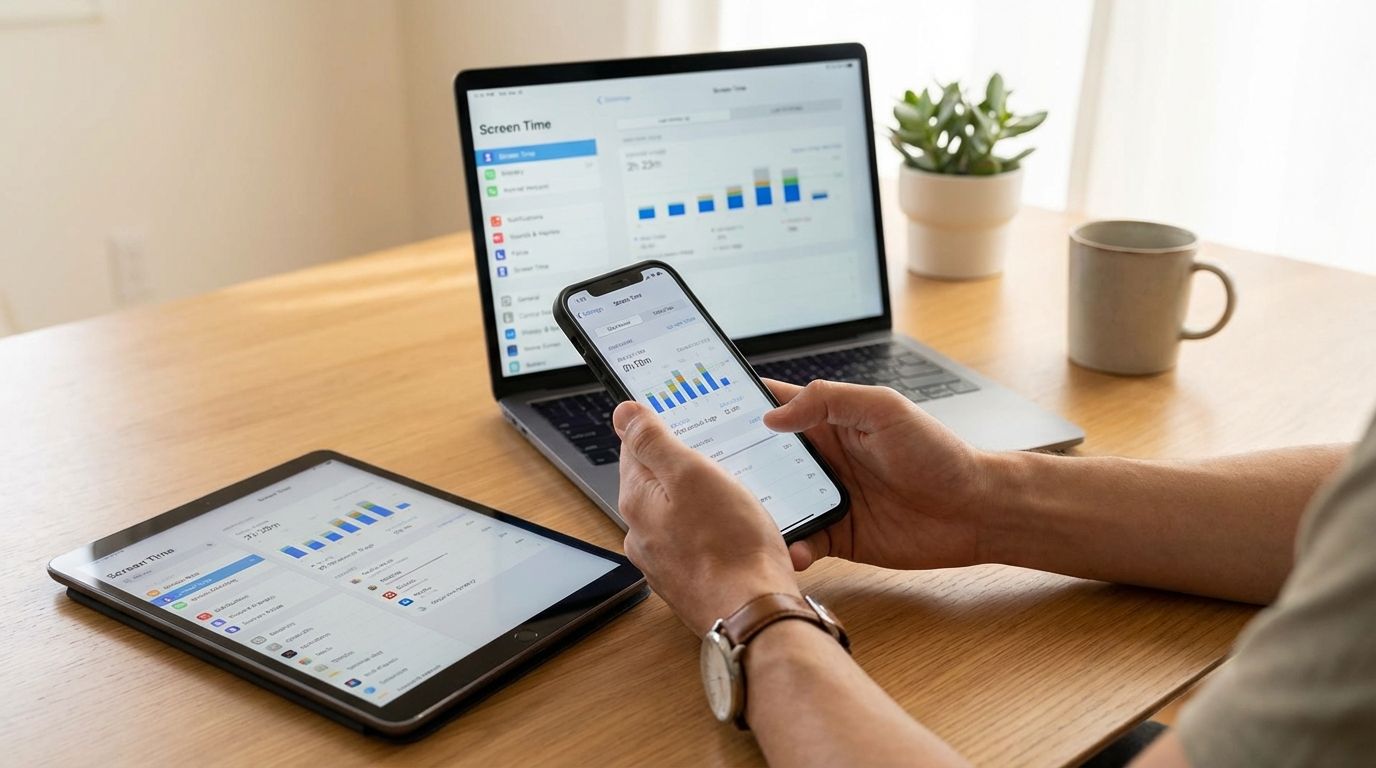
Table of Contents
- 1. Apple Screen Time
- 2. Google Family Link
- 3. Microsoft Family Safety
- 4. Freedom
- 5. Opal
- 6. AppBlock
- 7. StayFree
- How To Choose The Right Screen Time App For Your Devices And Habits
- Are Free Screen Time Apps Enough For Most People?
- Do Screen Time Apps Actually Work?
- What Is The Best App For Managing Screen Time?
- Take Control Of Your Attention Before Your Devices Do
Screen time apps help you measure device use, set limits, block distractions, and protect attention before a quick check turns into an hour. The best ones do not just count minutes. They shape behavior, reduce friction around good habits, and make it harder to drift back into old patterns.
If you want to spend less time on your phone, tablet, laptop, or gaming device, the right app depends on what keeps pulling you off track. Some tools are best for family controls, some are built for personal focus, and some work best when you need stronger enforcement across several devices. This guide walks you through seven strong options, explains where each one fits, and helps you choose the app that matches the way you actually use screens.
1. Apple Screen Time
Apple Screen Time remains one of the most useful starting points if you use an iPhone or iPad and want built-in control without adding another subscription. It gives you app limits, downtime scheduling, communication limits, content restrictions, and usage reports that show where your time is going. If you manage a child’s device, it also works with Family Sharing, which makes it practical for households already inside the Apple system.
The biggest advantage is convenience. You do not need to install anything, learn a new interface, or connect a separate service just to start cutting back on social media, gaming, video streaming, or endless browsing. You can set category-based limits, block specific apps during certain hours, and review pickup counts and notifications to spot patterns that are easy to ignore when you rely on memory.
Where Apple Screen Time falls short is enforcement. If you are using it for yourself, it can feel too easy to override when motivation drops. You can extend time, dismiss limits, or work around rules if you know your own settings well. That is why it works best for people who want awareness and light structure, not a hard barrier.
It is still one of the strongest free options on the market. If your goal is to build a simple screen time habit, monitor a child’s iPhone or iPad, or add guardrails without much setup, Apple Screen Time earns its place on this list. It is practical, stable, and already sitting in your settings menu waiting to be used properly.
2. Google Family Link
Google Family Link is one of the best choices for Android households that need parent-led device controls. It lets you set daily screen time limits, create bedtime schedules, manage app approvals, and lock a child’s device remotely. If your household relies on Android phones, tablets, or Chromebook devices, this is the cleanest native option to start with.
What makes Family Link useful is its direct connection to the Google account system. Instead of forcing you to bolt on a third-party tool, it ties device management, app permissions, and usage controls into the environment your child already uses. That reduces setup friction and gives you clearer visibility into app downloads, time spent, and when device access should stop.
Its strength is family administration, not strict self-control for adults. If you are trying to reduce your own social media use or block workday distractions, Family Link is not designed for that job. It is built to help parents keep routines stable, support safer device use, and keep children from running wild across apps and game time without oversight.
For parents, that makes it one of the most important screen management apps available. You get enough control to set rules, enough flexibility to adjust schedules, and enough visibility to handle day-to-day screen habits without adding unnecessary complexity. If your family lives on Android, Family Link should be near the top of your list.
3. Microsoft Family Safety
Microsoft Family Safety stands out when your idea of screen time goes beyond phones and includes Windows computers, Xbox gaming, and Android devices. That makes it valuable for families who do not live inside a single mobile ecosystem. If your child switches between a laptop, a game console, and a phone, this app gives you one place to manage time limits across those environments.
Its biggest edge is range. Many screen time tools focus on mobile devices and leave desktop use or console use half-covered. Microsoft Family Safety closes that gap by helping you set device limits, app and game limits, activity reporting, and requests for extra time across Microsoft’s broader ecosystem. For many households, that reflects real screen behavior more accurately than a phone-only solution.
This app also helps if your main concern is not just social apps but gaming hours and computer time. A lot of screen time slips through a laptop or console once phone restrictions are in place. If you only monitor a mobile device, you can end up managing part of the problem while the rest moves elsewhere. Microsoft Family Safety is useful because it covers that larger picture.
If your household uses Windows and Xbox regularly, this app can do work that Apple Screen Time and Google Family Link cannot match as cleanly in a mixed-device setting. It is not the right fit for every person, though it is one of the best picks for parents who need one control layer across several kinds of screens.
4. Freedom
Freedom is one of the strongest options when you want to block distracting apps and websites across multiple devices at the same time. If your phone limits fail because you switch to a laptop, or your laptop block fails because you reach for your tablet, Freedom solves a real gap that built-in screen time tools often leave open. It is built for people who need synchronized blocking, not just basic reports.
You can set recurring sessions, create custom blocklists, and run the same block across phones, tablets, desktop computers, and browser-based environments. That matters if your work requires deep focus, your study routine keeps breaking, or your evenings disappear into device-hopping. A single-device solution often feels useful until you notice that your distractions simply migrate.
Freedom works best for structured periods when you want access shut down across the board. It is a strong fit for work blocks, writing time, study hours, and digital resets where a partial limit is not enough. If your problem is endless social media refreshes, news checking, shopping tabs, or video rabbit holes across several screens, this app addresses the pattern more directly than mobile-only tools.
The tradeoff is that Freedom is less about detailed family supervision and more about decisive blocking. You use it when you want fewer loopholes, cleaner focus windows, and cross-device consistency. For adults who are serious about reducing distraction across an entire device stack, Freedom belongs on any serious shortlist.
5. Opal
Opal has earned attention as a premium screen time app for people who want stronger personal boundaries than native tools usually provide. It is designed around intentional blocking, friction, and focus protection, which makes it a strong choice if you keep overriding softer limits. If Apple Screen Time feels too easy to ignore, Opal moves further into active self-control.
Its appeal comes from the way it frames distraction reduction as a direct behavior problem, not just a reporting problem. Many users do not need another chart telling them they spent too long on social media. They need a blocker that gets in the way at the right time, reduces impulsive access, and makes breaking a promise to themselves feel inconvenient. Opal is built around that use case.
This app fits adults who already know their biggest distractions. If video apps, social feeds, games, or messaging loops are eating your day, Opal gives you a stronger structure for cutting those habits down. It is not just about counting usage. It is about interrupting automatic patterns before they turn into wasted hours.
Opal is especially useful if you want a polished, personal productivity tool rather than a parental-control dashboard. It carries a premium feel and targets self-management rather than family oversight. If your goal is to defend your workday, protect your evening, and create less room for instant app switching, Opal is one of the better choices in that lane.
6. AppBlock
AppBlock is built for stricter control, and that is exactly why it makes this list. If you are the type of user who disables a blocker the moment cravings hit, basic timers are not enough. You need rules, schedules, and friction that hold up when willpower drops. AppBlock is designed for that tougher job.
Its blocking system can cover apps, websites, notifications, and scheduled use windows. It also includes stricter modes that make it harder to edit settings or remove restrictions during active blocks. That matters when the real issue is not knowing what wastes time. The real issue is breaking the habit of reaching for the same app every few minutes without thinking.
This makes AppBlock a strong option for Android users and anyone who wants fewer loopholes. It is useful for work sessions, study periods, sleep routines, and situations where selective access is too tempting. If you know that a soft reminder will not stop you from opening a distraction app again, AppBlock gives you a more forceful layer of control.
The caution is simple: stricter settings require more care during setup. If you block an essential tool without planning, you create your own headache. Still, when self-discipline alone is not getting results, AppBlock can be one of the most effective upgrades you make. It turns screen time control from a suggestion into a rule set.
7. StayFree
StayFree is a smart choice if you want a balance between tracking, limits, and practical behavior control without jumping straight into a premium-only ecosystem. It gives you usage reports, daily limits, focused sessions, website blocking, and a view of how time is spread across apps and devices. That balance makes it appealing for people who want more than built-in tools but do not want an overly rigid blocker.
One of its biggest strengths is visibility. Many people underestimate how much time disappears into short, repeated checks rather than one long session. StayFree helps you see frequency, patterns, and problem windows, which gives you data you can actually act on. Once you know which app dominates your mornings, breaks, or evenings, you can set tighter rules where they will matter most.
It also works well for people who still need access to certain apps but want to control how they use them. You may need YouTube for tutorials, messaging for work, or a browser for research. StayFree is useful when your goal is not a full blackout but smarter boundaries around how and when those tools stay available.
If you want an app that sits between simple native controls and strict lockout systems, StayFree fits nicely. It gives you measurement, planning, and enough control to reduce mindless use without turning every block into a dramatic shutdown. For many users, that middle ground is exactly where long-term screen time improvement starts.
How To Choose The Right Screen Time App For Your Devices And Habits
The best screen time app is the one that matches your actual failure point. If your problem is awareness, choose a tool with strong reporting and usage analysis. If your problem is impulse control, choose a blocker with stricter rules and fewer escape routes. If your problem is family management, stay with native systems that connect cleanly to the devices in your home.
Start by looking at your device mix. If you use only an iPhone, Apple Screen Time may be enough. If you move between phones, computers, and tablets, a cross-device blocker like Freedom becomes more valuable. If your household uses Android phones and Chromebook devices for children, Google Family Link makes more sense than a generic focus app.
You should also decide how much friction you need. Some users succeed with a dashboard and a gentle limit. Others need app lockouts, scheduled blocks, and settings that are difficult to reverse in the moment. That difference matters more than feature count. A less flashy app that actually changes behavior is worth more than a polished one you override every day.
Budget matters, though it should not be the only filter. Free screen time apps are often enough for casual management, especially when you use built-in tools well. Paid apps become more useful when you need cross-device coverage, stronger enforcement, better analytics, or more control over how blocks are scheduled. Choose based on your pattern, not on marketing claims alone.
Are Free Screen Time Apps Enough For Most People?
For many people, yes. Free tools can do a lot if you use them with intention. Apple Screen Time and Google Family Link already cover limits, schedules, usage data, and parental controls. StayFree also gives a solid free entry point for tracking and basic behavior shaping.
Where free tools start to feel limited is when your habits are persistent and your workarounds are easy. If you routinely ignore limits, disable blocks, or shift distractions to another device, you may need a paid app with stronger controls. Premium tools usually earn their cost through cross-device syncing, harder lockouts, and more refined focus features rather than basic timers.
The right move is to start with the strongest free option that matches your platform, then upgrade only when your behavior proves you need more. That keeps your system simple and prevents you from paying for features you will never use. A free app used consistently beats a paid app you abandon after a week.
What matters most is not whether an app is free or paid. What matters is whether it removes enough friction from good habits and adds enough friction to bad ones. That is the standard that should guide your choice.
Do Screen Time Apps Actually Work?
They work when the tool matches the behavior. A reporting app helps if you underestimate usage and need visibility. A blocking app helps if your problem is impulse. A family-control app helps if the goal is consistency, oversight, and limits across a child’s devices. The mistake is expecting one type of app to solve every screen problem equally well.
Many users fail with screen time tools not because the apps are useless, but because they pick the wrong category. Someone who needs a hard stop installs a soft tracker. Someone managing a child picks a self-focus app. Someone struggling across phone and laptop chooses a mobile-only timer. When the fit is wrong, the app looks ineffective even if the product itself is solid.
Behavior also matters. You will get better results when you pair app rules with practical changes like removing high-risk apps from your home screen, setting work and sleep schedules, reducing notifications, and deciding in advance when certain platforms stay off-limits. Software helps, though it works best when it supports a clear operating rule rather than replacing one.
If you choose carefully, screen time apps can reduce distractions, protect work blocks, support family routines, and help you spend less time in reactive device use. They are not magic, though they can become one of the strongest systems you put in place when you stop treating them like a simple timer and start using them like behavior controls.
What Is The Best App For Managing Screen Time?
- Best for iPhone: Apple Screen Time
- Best for Android families: Google Family Link
- Best for cross-device blocking: Freedom
- Best for strict limits: AppBlock
- Best for adult focus: Opal or StayFree
Take Control Of Your Attention Before Your Devices Do
Managing screen time gets easier when you stop searching for one perfect app and start choosing the right tool for the way you actually lose time. Apple Screen Time, Google Family Link, Microsoft Family Safety, Freedom, Opal, AppBlock, and StayFree each solve a different version of the same problem. Some are best for parents, some are built for personal discipline, and some are strongest when distraction follows you from one device to another. If you match the app to your habits, set clear rules, and use the tool consistently, you can reduce wasted screen hours without turning daily life into a constant battle. If you want more practical guides on digital habits, focus systems, and smarter tech use, visit the profile link below and keep reading.
References
- https://support.apple.com/108806
- https://safety.google/intl/en_us/families/family-friendly-experiences/
- https://www.microsoft.com/en-us/microsoft-365/family-safety
- https://freedom.to/
- https://www.opal.so/
- https://appblock.app/help/android/tips-tricks
- https://appblock.app/help/android/blocking-android
- https://www.rescuetime.com/
- https://stayfreeapps.com/
- https://alsoasked.com/
- https://www.reddit.com/r/productivity/comments/1l7k9ce/are_there_any_free_screen_blockingmonitoring_apps/
- https://www.reddit.com/r/AndroidQuestions/comments/153x96k
- https://www.reddit.com/r/adhdwomen/comments/1fudjx4
- https://www.reddit.com/r/digitalminimalism/comments/1linvck
- https://www.reddit.com/r/apps/comments/umwfao
- https://www.reddit.com/r/nosurf/comments/1jnokvl/do_screen_time_limit_apps_actually_work_for_you/
Related Posts
How to Build a Strong Resume as a Student With No Experience
Learn how to build a strong student resume with no experience...

How to Memorize Faster and Retain Information Longer
Learn how to memorize faster with active recall, spaced repetition, and...

How AI Is Changing Supply Chain Jobs (And What Skills Will Still Matter)
See how AI is changing supply chain jobs and which human...